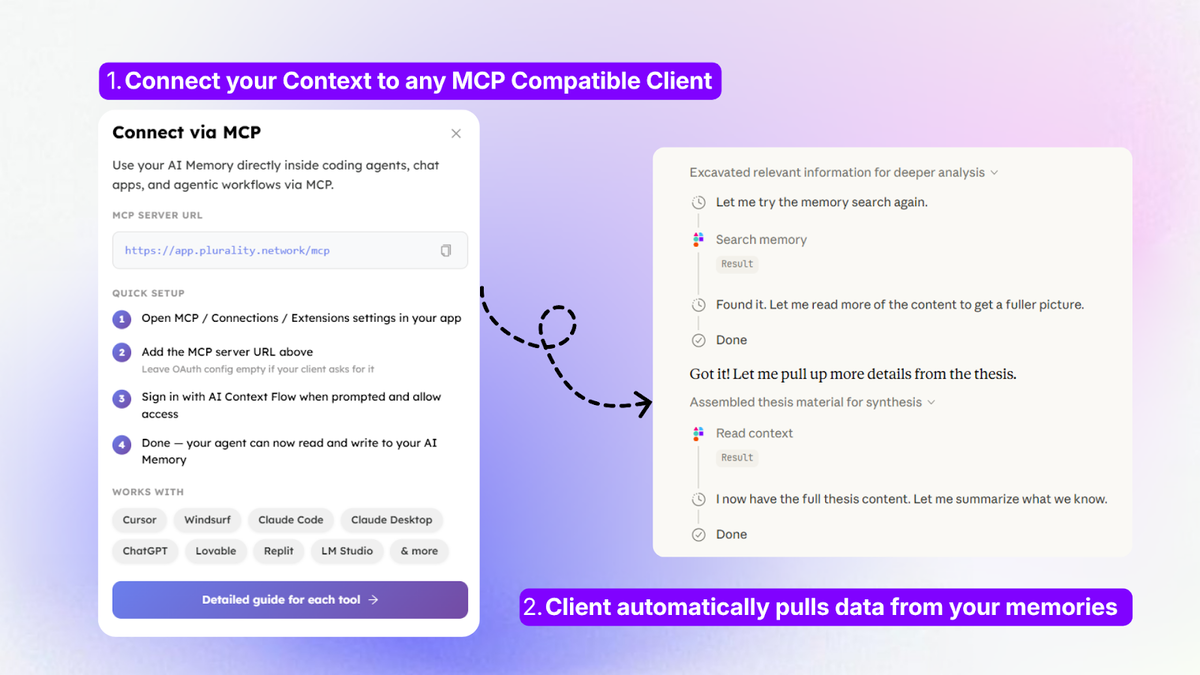
We've been getting great questions about MCP authentication — especially from users running agents in headless or server environments. Here's everything you need to know.
Personal Access Tokens (PAT) support — shipping in 1–2 days
We've prioritized PAT-based MCP authorization and it's nearly done. We'll post an update here as soon as it ships. If you prefer waiting for native Tokens support, it's just around the corner.
Headless workaround — works right now
If you're using an agent like OpenClaw in headless mode (no browser), you can use mcp-remote as a bridge. It's an open-source npm package that sits between your agent and our MCP server, handling the OAuth flow on your behalf so your headless box never needs a browser.
Prerequisites: Node.js must be installed on both machines (the one with a browser and the headless box). Run node -v to check.
1. Run the bridge on a machine that has a browser
```npx mcp-remote https://app.plurality.network/mcp```
A browser window will open asking you to authorize access. Complete the flow once. This can be your laptop or any desktop machine — it just needs a browser.
2. Copy the auth tokens to your headless box
After authorizing, tokens are saved to ~/.mcp-auth/ on that machine. Copy the entire directory to the same path on your headless box using scp, rsync, or any file transfer you prefer:
3. Run the bridge on the headless box too
```npx mcp-remote https://app.plurality.network/mcp```
This time it will find the tokens in ~/.mcp-auth/ and skip the browser step entirely.
4. Point your agent at the bridge
In your agent's MCP config, set the command to run mcp-remote instead of connecting to our server directly. The exact config field depends on your agent — here's what it looks like for common setups:
OpenClaw / Claude Desktop (mcp_config.json):
```
{
"mcpServers": {
"plurality": {
"command": "npx",
"args": ["mcp-remote",
"https://app.plurality.network/mcp"]
}
}
}
```
If your agent uses a different config format, the key idea is the same.
Token auto-refresh: The ~/.mcp-auth/ directory stores both your access token and a refresh key. The refresh key is valid for 30 days from the last time it was used — so as long as your agent runs at least once within any 30-day window, it will auto-refresh silently. You only need to repeat the browser auth step if the session has been completely idle for over 30 days.
Questions or issues? Drop them here or write us an email at [email protected], or ping us at discord.. we'll help you get connected!


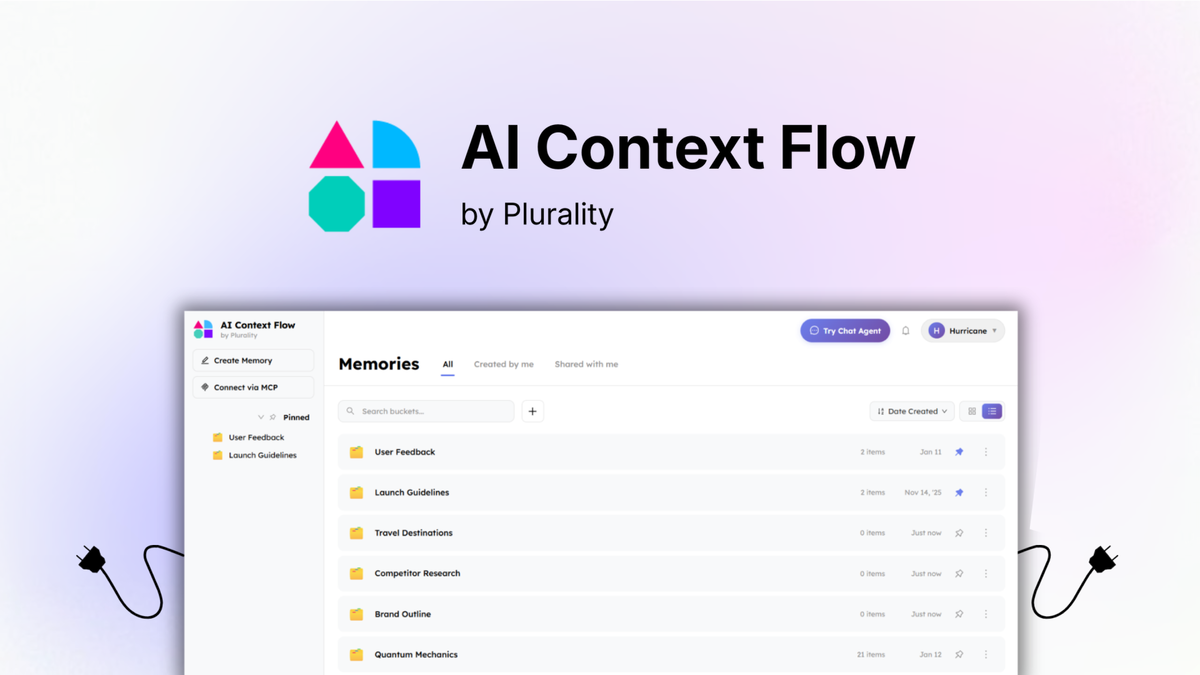
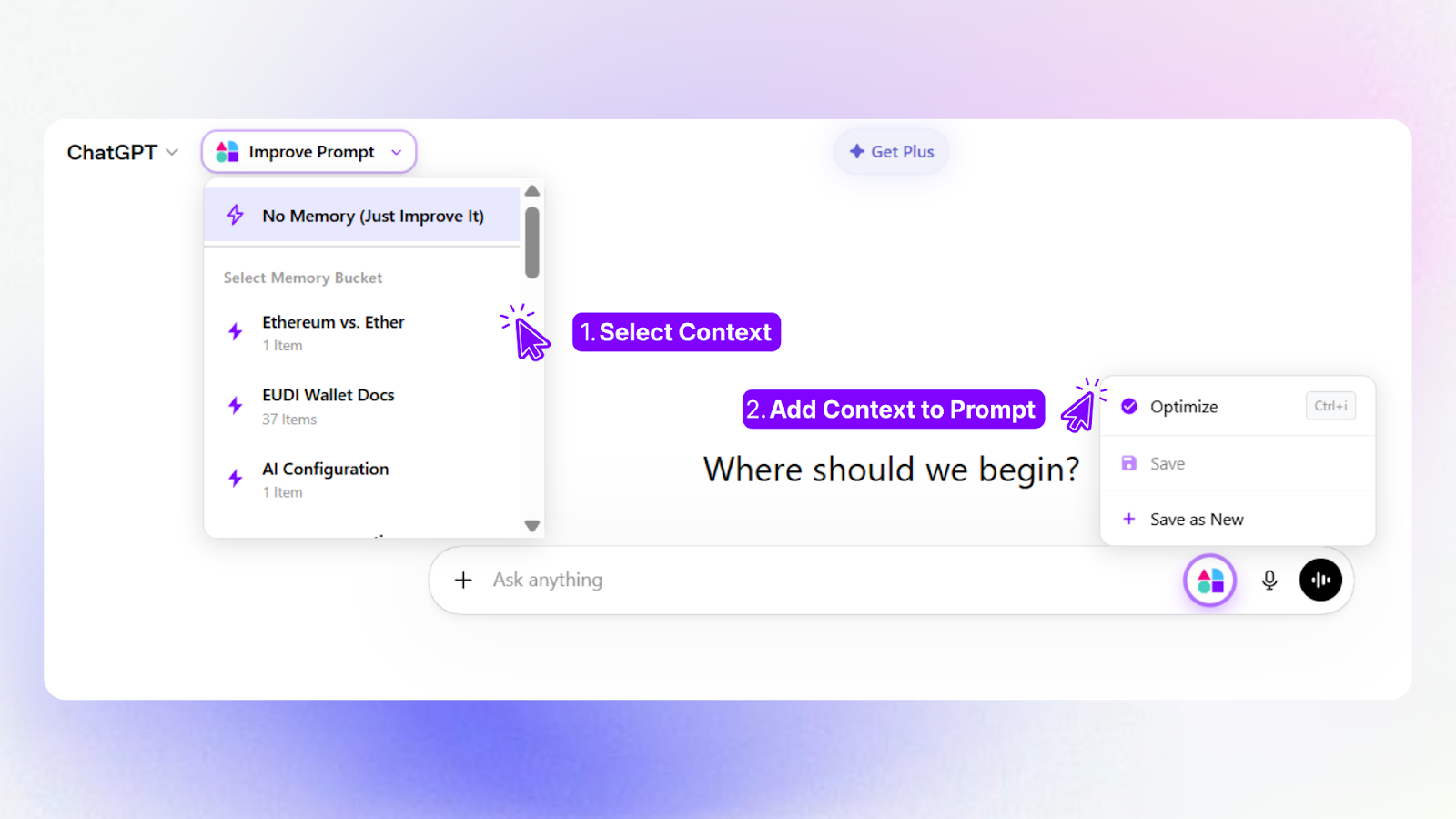
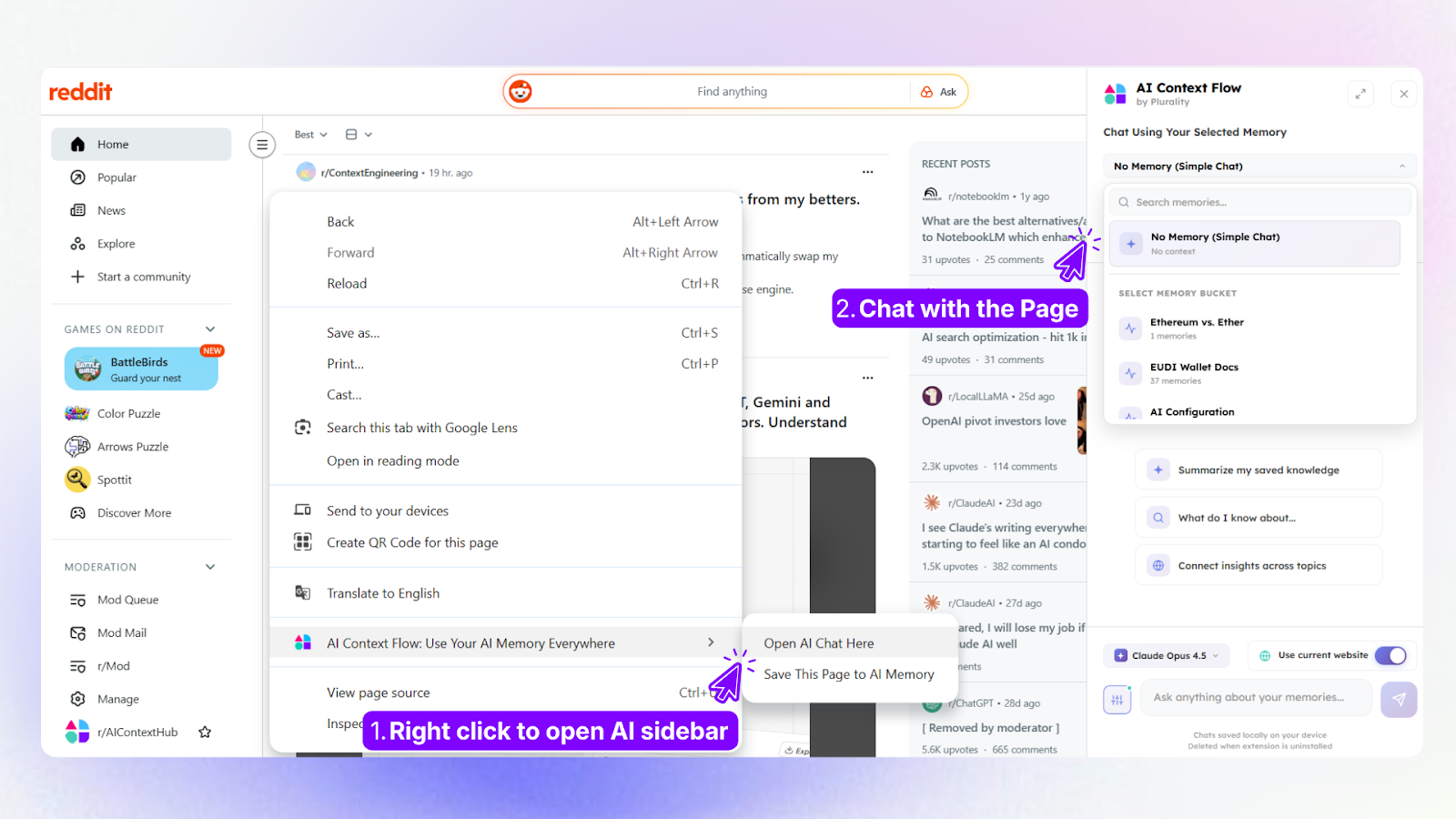
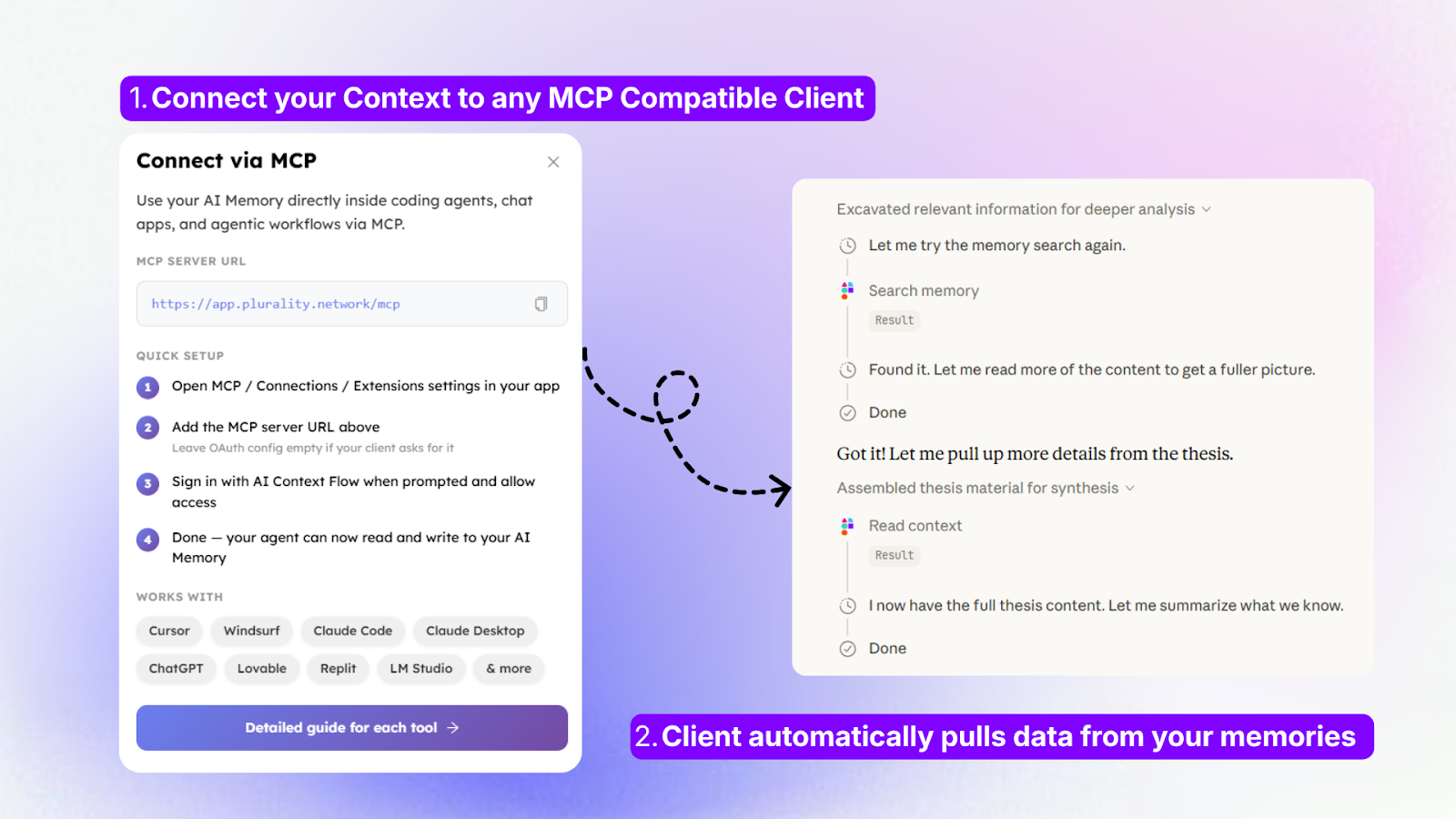
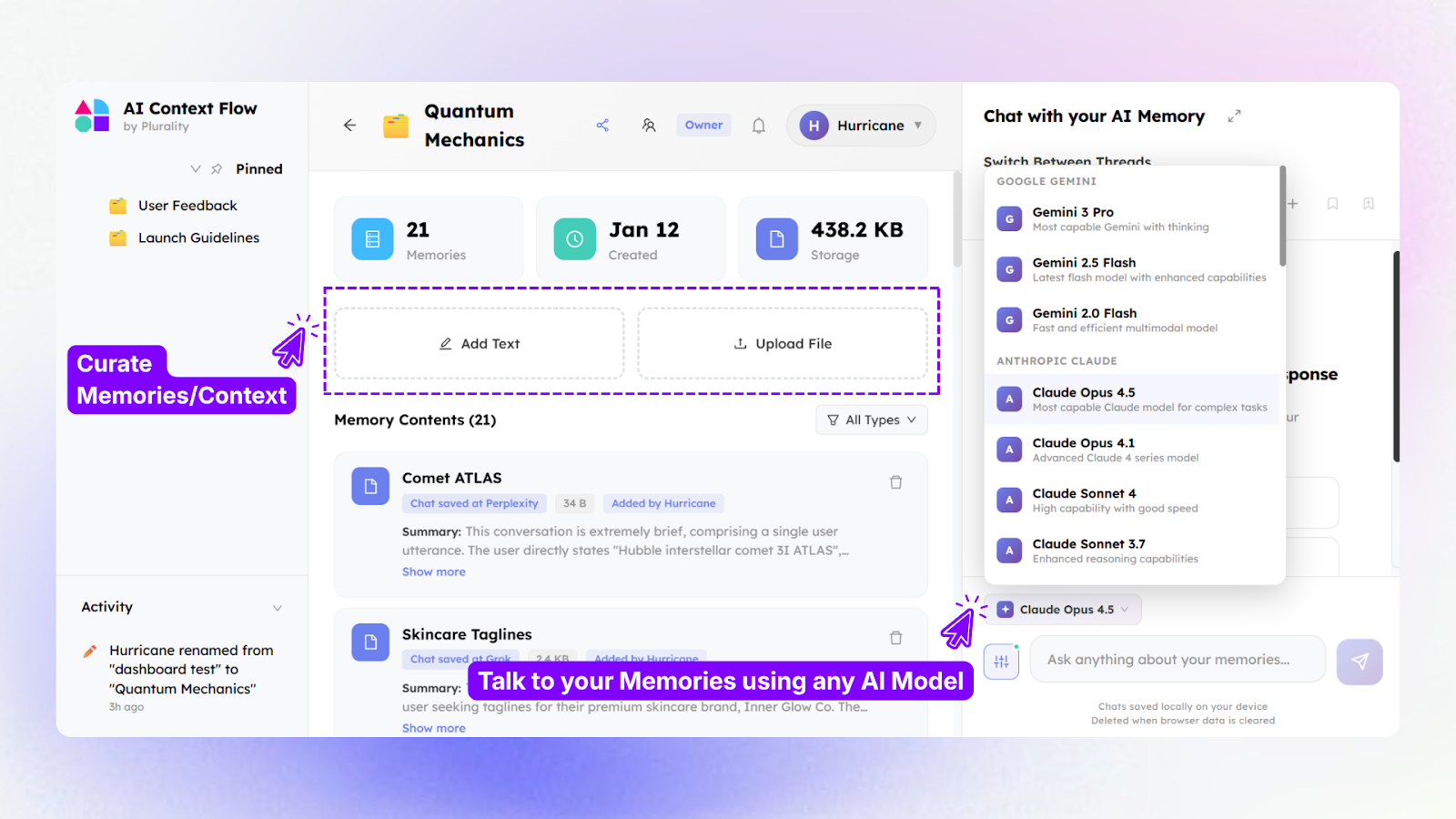

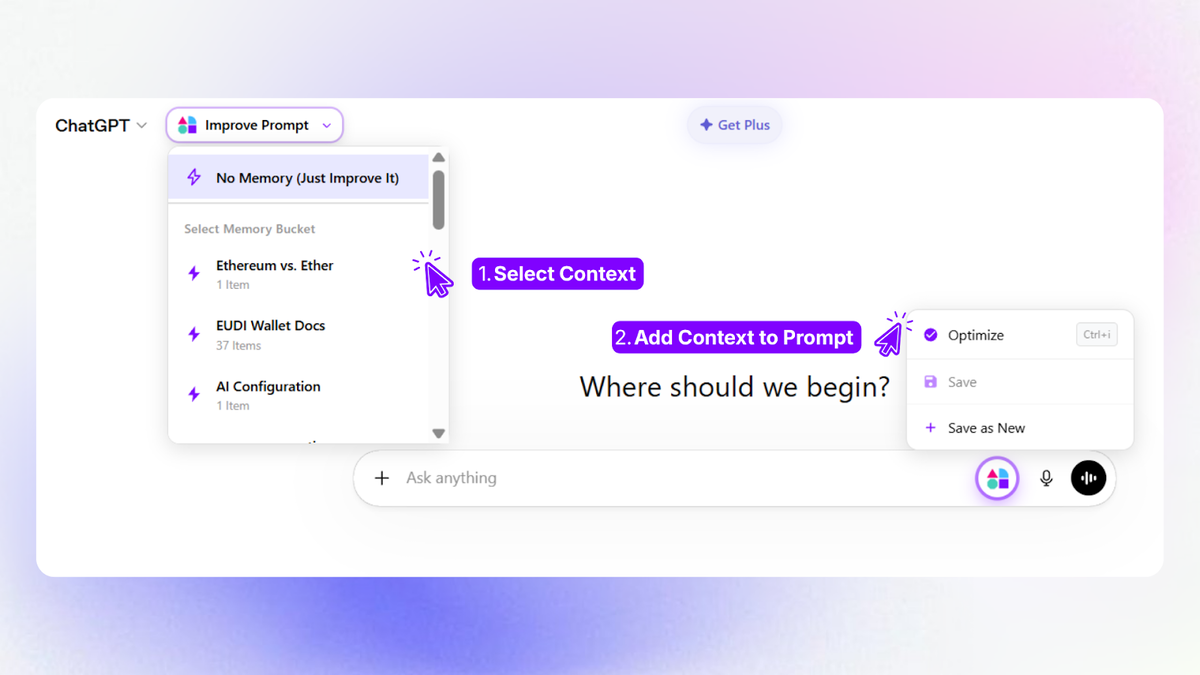
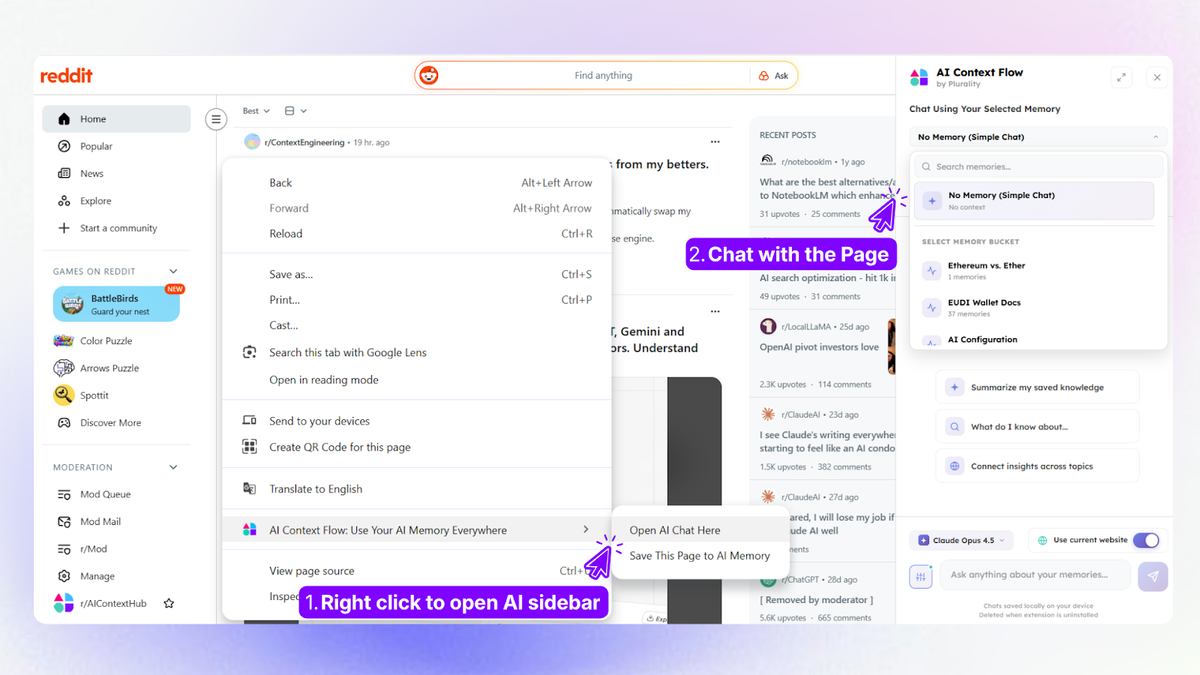
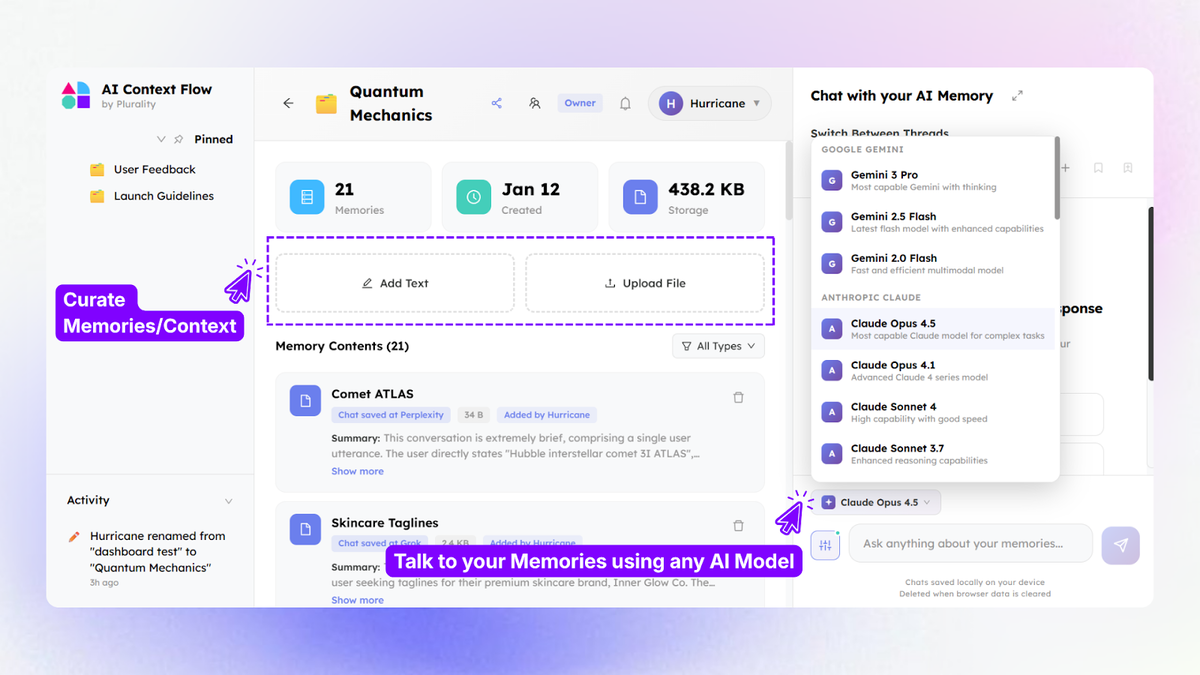
 Sync one memory bank across ChatGPT, Claude, Gemini, and more so every prompt starts with the right context
 Recommended